Miracast for Screen Mirroring
1.3.3 by BoostVision (0 Reviews) August 04, 2024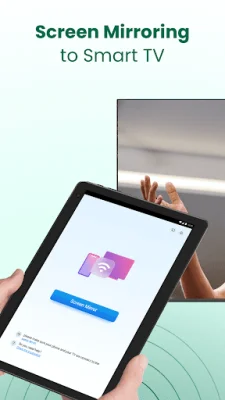
Latest Version
1.3.3
August 04, 2024
BoostVision
Tools
Android
0
Free
com.boost.mirror.sender
Report a Problem
More About Miracast for Screen Mirroring
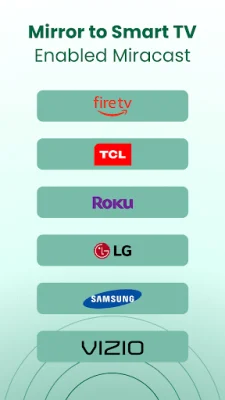
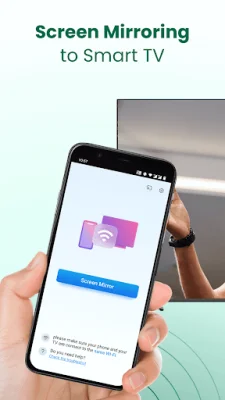
This Miracast for Screen Mirroring app allows you to easily connect your Android mobile device to a variety of smart TVs that support the Miracast protocol. This includes popular brands such as Fire TV, LG, Roku, Samsung, Panasonic, TCL Roku, Hisense, Sony, and Vizio. As long as your mobile device is running Android 7.0 or higher, you can enjoy fast and stable screen sharing with this app.
One of the unique features of this app is the ability to not only mirror your phone's screen onto your TV, but also to enjoy music, videos, and games on the larger display. This is made possible by the app's self-developed mirror protocol, which ensures a smooth and reliable connection. With just one tap over WiFi, you can easily connect your phone to your TV and start sharing your media files, including videos, photos, and audios.
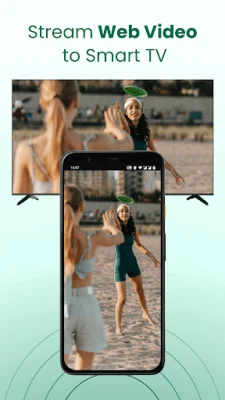
There are many ways you can use this Miracast for Screen Mirroring app. You can share your travel memories with your family by displaying your photos and videos on the big screen. You can also stream movies and web videos to enhance your viewing experience. For gamers, you can mirror your real-time game screen to the TV and play with friends. And for professionals, you can share presentations and documents on the big screen with your co-workers.
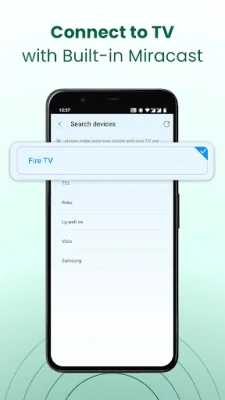
The process of screen mirroring with this app is simple and straightforward. First, make sure your smart TV and mobile device are connected to the same network. Then, ensure that your TV supports Miracast protocol and enable the Miracast Display option. On your phone, enable the Wireless Display option and choose your TV device name to connect. That's it, you can now enjoy a better visual experience on your TV.
If you encounter any issues with connecting, there are a few troubleshooting steps you can take. Make sure both devices are on the same WiFi network and that your TV supports Miracast. If the problem persists, try reinstalling the app and rebooting your TV. For issues with mobile devices, you can also try downloading the screen share app on another device.
It's important to note that this app is not affiliated with any of the TV brands mentioned and may not be compatible with all TV models due to limited testing. Before using the app, be sure to read the Terms of Use and Privacy Policy, which can be found on the developer's website. With this Miracast for Screen Mirroring app, you can easily connect your mobile device to your TV and enjoy a better viewing experience.
Rate the App






Popular Apps