Samsung Smart View - Cast To
104 by Smart Remote Apps (0 Reviews) November 19, 2025

Latest Version
104
November 19, 2025
Smart Remote Apps
Tools
Android
0
Free
com.casttotv.screenmirroring.smartview.smarttvlcd
Report a Problem
More About Samsung Smart View - Cast To
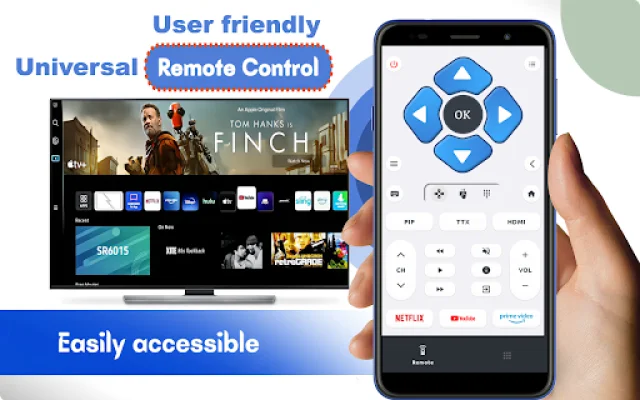
Enjoy playing your favourite videos, photos, games and many more on your Samsung tv, Roku tv, Lg tv and other smart tvs by using Smart View For Samsung TV.
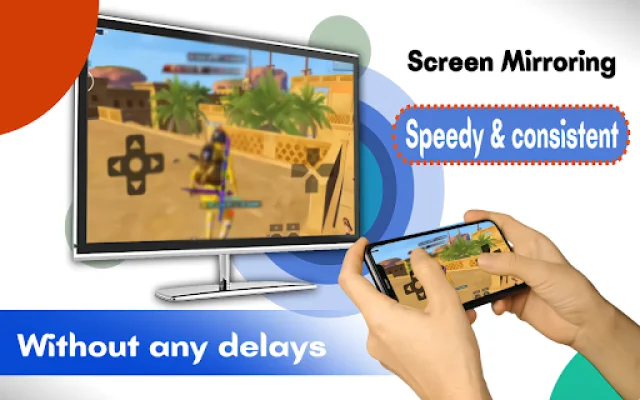
Smart View Screen Sharing App also works with chromecast, share screen on roku tv and Samsung Smart View that instantly share screen from your mobile phone to Smart Tvs and android tvs.
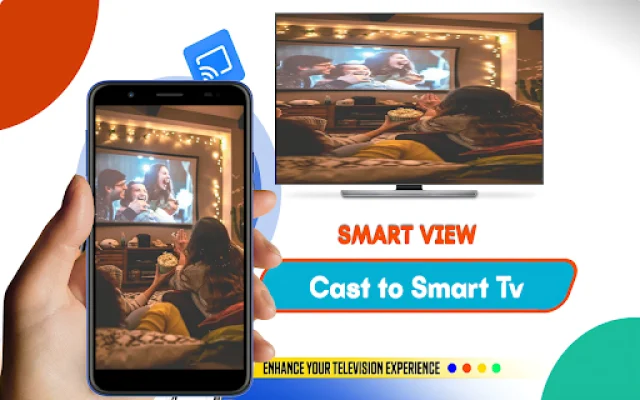
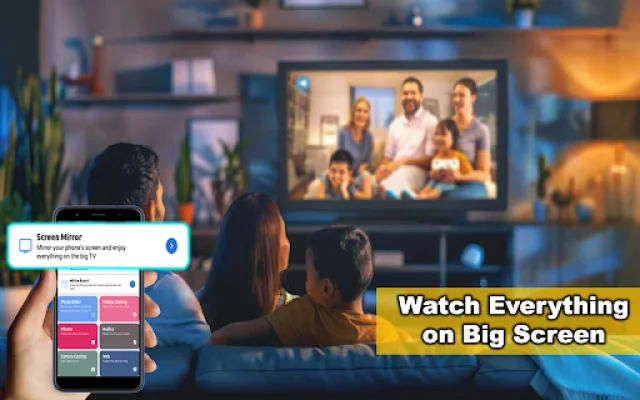
If you feel bad about watching a movie alone on your small phone screen the try our screen share for app and share your fauvorite contents with your friends or family with a smart view option on big TV screens like Lg smart tv, Hisense, TCL, Vizio, Roku , Amazon Fire Stick or Fire TV.
This Screen Sharing App allows you casting your small mobile screens into larger screens on any Smart tv. You can now save your weak eyes from small screen by sharing same mobile content in big screen Television. You can easily display all types of media files including photos, videos, mobile games and music on the big screen.
The Smart View Screen Sharing App offers a variety of features such as Mircast and ChromeCast Display, Smart View, Screen sharing, Sharing mobile screen on tv, Screen Cast media files and mirror screen to TV, Screen Share on Android TV, Cast Your Mobile Small screen to big TV, and the ability to watch your movies on big tv screen.
To use the app, make sure your smart phone and smart TV are connected to the same Wi-Fi network. Then, enable “Wireless display” on your phone and Miracast or Chromecast on your smart TV. Next, select the tab to connect button in the app and choose your TV device to share your mobile screen to the TV. With Smart View Screen Sharing App, you can easily enjoy your favorite content on a bigger screen and share it with others.
Rate the App

Popular Apps