Screen Mirroring TV & Miracast
2.0.4 by TV Cast (0 Reviews) August 04, 2024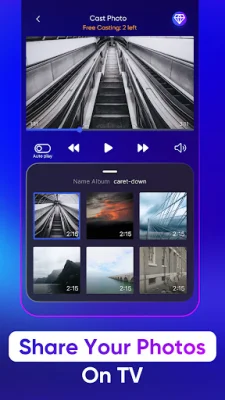
Latest Version
2.0.4
August 04, 2024
TV Cast
Tools
Android
0
Free
screen.mirroring.smart.tv
Report a Problem
More About Screen Mirroring TV & Miracast
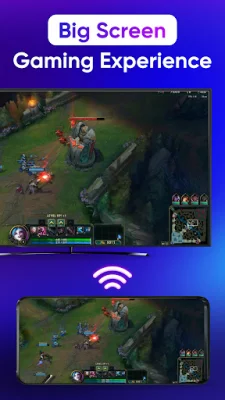
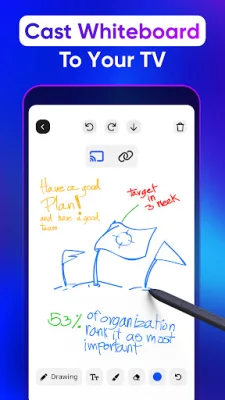
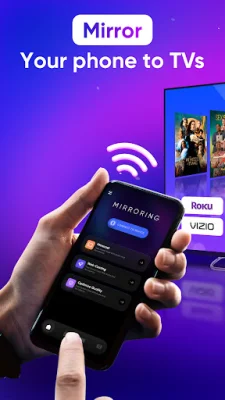
This app, called "Screen Mirroring TV & Miracast," allows users to easily share their phone screen on a larger screen, such as a TV, without any delays or additional hardware. It supports screen sharing and casting in high quality, making it perfect for presentations, watching videos, or playing games on a bigger screen.
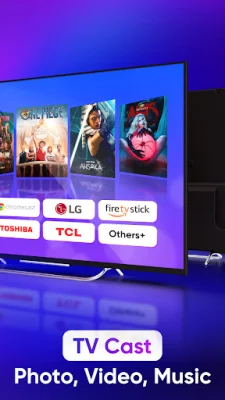
The app has several features, including the ability to connect and share your phone screen with a Roku TV in just two simple steps. It also allows for real-time screen mirroring to Chromecast TV with the highest video quality. Users can control everything conveniently, including volume, pause, fast forward, and rewind, with no delay. The app also allows for casting photos and videos to a Samsung TV and playing music and games on an LG smart TV. Additionally, users can easily access YouTube and IPTV through the app and use a remote control for smart TVs.
To use the app, users must ensure that their phone and device are connected to the same Wi-Fi network. They must also enable Miracast on their TV and enable wireless display. Once connected, users can enjoy mirroring any image, video, or audio they want on the big screen.
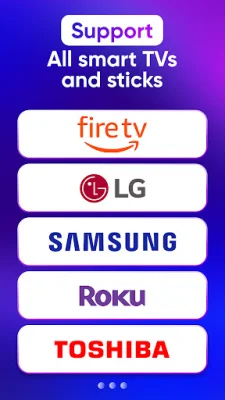
The app supports a variety of devices, including Chromecast, Roku, Roku Stick, and Roku TVs, as well as most smart TVs such as Hisense, Samsung TV, LG Smart TV, Sony TV, Panasonic, TLC, and Toshiba. It also works with Xbox, FireTV, and Fire Stick, as well as other DLNA receivers.
To start screen mirroring, users simply need to connect their Android device and Roku TV to the same Wi-Fi network, open the app, and connect it to their TV. They can then tap on "Screen Mirror" and follow the instructions to start smart mirroring. To stop mirroring, users can click on the top red bar of their phone. It's important to note that this app is not affiliated with any specific brands or trademarks mentioned, such as Roku, TCL, Samsung, LG, or Vizio.
Rate the App




Popular Apps