

Galaxy Buds
8.5.10.1500 by Samsung Electronics Co., Ltd. (0 Reviews) March 20, 2026
Latest Version
8.5.10.1500
March 20, 2026
Samsung Electronics Co., Ltd.
Tools
Android
0
Free
com.samsung.accessory.budsunitemgr
Report a Problem
More About Galaxy Buds
Android 12 or higher offers a range of exciting features, but to fully utilize them, you must grant permissions to the Galaxy Buds app in your Android settings. This can be done by going to Settings, then Applications, and selecting Galaxy Buds. From there, you can manage the app's permissions.
The app requires certain permissions to function properly. However, even if you choose not to grant optional permissions, you can still use the basic features of the service. This means that you can still enjoy the app's functionality without having to give it access to all of your information.
The required permissions include the ability to scan for nearby Galaxy Buds devices. This is necessary for the app to connect to your earbuds and provide you with a seamless experience.
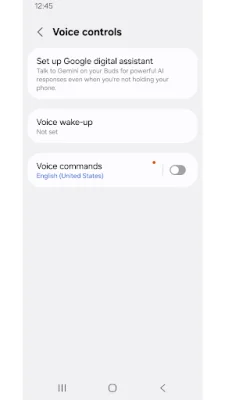
There are also optional permissions that you can choose to grant. These include access to your calls, contacts and account, calendar, call logs, and notifications. These permissions are used for the voice notification feature, which allows the app to provide you with information through your earbuds.
It's important to note that if you have previously granted permissions and there is a software update, these permissions may be reset. In this case, you can easily manage your permissions again by going to the app menu within your device settings. This ensures that you have full control over the app's access to your information. So, go ahead and enjoy all the amazing features of Android 12 or higher with the Galaxy Buds app!
Rate the App














Popular Apps