

Google Authenticator
by Google LLC (0 Reviews) July 26, 2024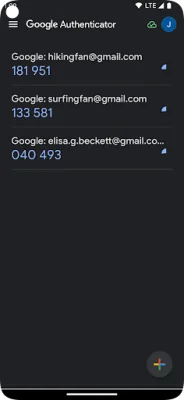
Latest Version
July 26, 2024
Google LLC
Tools
Android
0
Free
com.google.android.apps.authenticator2
Report a Problem
More About Google Authenticator
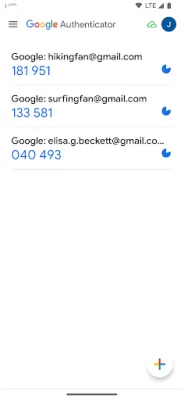
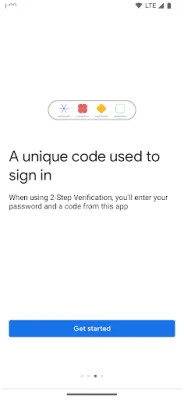
This application requires an additional layer of security in addition to your password. This added layer is a code generated by the Google Authenticator app on your phone. This means that in order to access your account, you will need to enter both your password and the code generated by the app.
The Google Authenticator app can generate a verification code even if you do not have a network or cellular connection. This ensures that you can still access your account even in areas with poor connectivity.
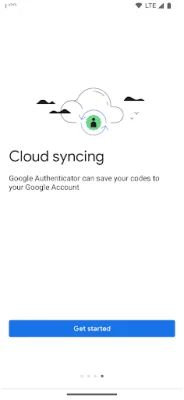
By syncing your Authenticator codes to your Google Account and across your devices, you can always access them even if you lose your phone. This feature also allows for easy transfer of accounts to a new device.
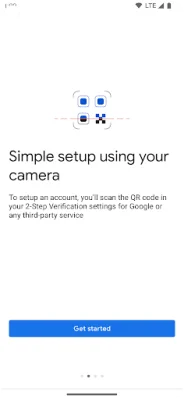
The app also offers the convenience of setting up your Authenticator accounts automatically with a QR code. This not only saves time, but also ensures that your codes are set up correctly.
With support for multiple accounts, you can manage all your accounts in one place without having to switch between different apps. The app also offers the option to choose between time-based and counter-based code generation, allowing you to select the method that best suits your needs.
In order to use Google Authenticator with Google, you will need to enable 2-Step Verification on your Google Account. This can be done by visiting http://www.google.com/2step. Please note that the app requires permission to access your camera in order to add accounts using QR codes.
Rate the App















Popular Apps