Miracast
1.1.9 by Cast4TV (0 Reviews) November 08, 2025
Latest Version
1.1.9
November 08, 2025
Cast4TV
Tools
Android
0
Free
com.cast4tv.miracast
Report a Problem
More About Miracast
This application allows you to cast your Android device's screen onto a Smart TV screen, as long as the TV supports Wireless Display or Miracast. This means that you can easily share your phone or tablet's screen with a larger display, making it perfect for presentations, watching videos, or playing games on a bigger screen.
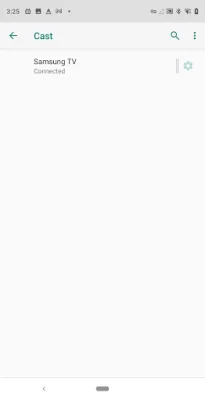
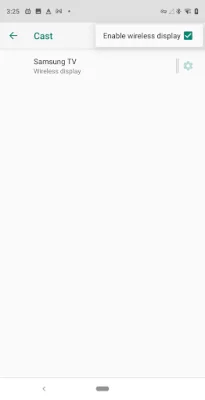
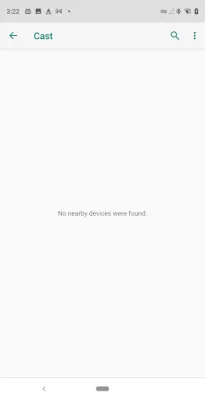
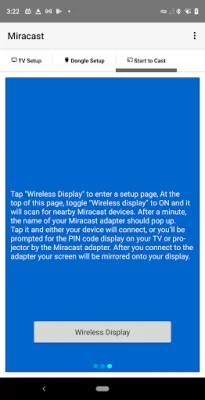
To use Miracast, simply tap on the "Wireless Display" option on your device and it will take you to a setup page. From there, toggle the "Wireless display" option to ON and it will start scanning for nearby Miracast devices. Once your device finds the Miracast adapter, you can tap on it to connect. If prompted, enter the PIN code displayed on your TV or projector to complete the connection. Once connected, your device's screen will be mirrored onto the display.
Setting up your Smart TV for Miracast is also a simple process. First, check if your TV has a Miracast app or if it is considered as another input. If it is an app, you can access it through the Menu button on your remote. If it is an input, you can select it through the Input or Source option. Look for apps or inputs with names like "Miracast", "Screen Casting", or "Wi-Fi Casting".
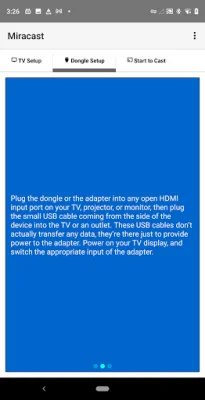
If your TV does not have built-in Miracast capabilities, you can still use this application by setting up a Miracast dongle or adapter. Simply plug the dongle into an open HDMI input port on your TV, projector, or monitor, and then connect the USB cable to the TV or an outlet for power. Once everything is connected, turn on your TV and switch to the appropriate input for the adapter. Now, you can easily cast your device's screen onto the larger display.
With this application, you can easily share your Android device's screen with a Smart TV screen, making it a convenient and versatile tool for various purposes. Whether you want to share presentations, watch videos, or play games on a bigger screen, Miracast makes it possible with just a few simple steps.
Rate the App





Popular Apps