

Auto Clicker & Swipe
by RRNDev (0 Reviews) July 17, 2026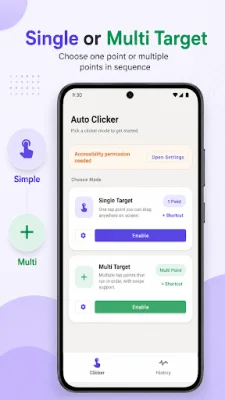
Latest Version
July 17, 2026
RRNDev
Tools
Android
0
Free
id.biz.rrndev.autoclicker
Report a Problem
More About Auto Clicker & Swipe
TWO MODES
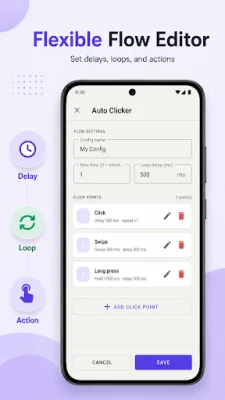
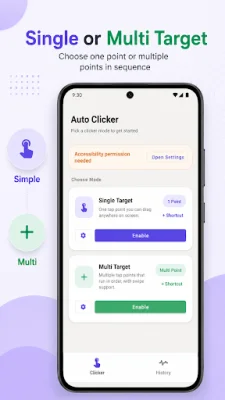
The Auto Clicker app offers two different modes for automating tasks on your Android device. The first mode is the Single Target mode, which allows you to place a single clickable point on your screen that will be repeatedly tapped in the same location. The second mode is the Multi Target mode, which allows you to add multiple clickable points that will run in sequence. Each point can have its own position, delay, hold duration, and repeat count.
SWIPE ACTION
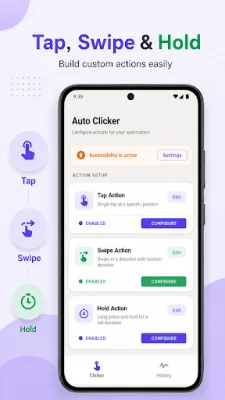
In addition to the two modes, the Auto Clicker app also offers a Swipe Action feature. This allows you to create swipe gestures by setting a start and end point on your screen. This can be useful for tasks such as scrolling, sliding, or other repetitive gesture tasks. You can adjust the swipe duration and delay to fit your specific needs.
LONG PRESS ACTION
The app also offers a Long Press Action feature, which allows you to create long press automations by placing a target point and setting the hold duration. This can be useful for tasks that require holding on the screen, such as selecting, dragging preparation, or other repetitive hold gestures.
SHORTCUT
To make it easier to access frequently used tap or swipe configurations, the Auto Clicker app allows you to create shortcuts for saved configurations. These shortcuts can be placed on your device's home screen for quick access.
FLOATING CONTROL PANEL
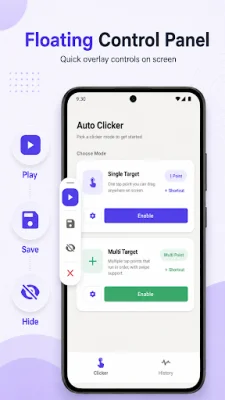
The app also includes a floating control panel that provides quick access to core controls. These controls include Play/Pause to start or stop automation, Settings to adjust interval, loop count, and action timing, Save to save the current configuration, Hide/Show to control overlay visibility, and Close to dismiss the panel.
SAVE CONFIGURATION
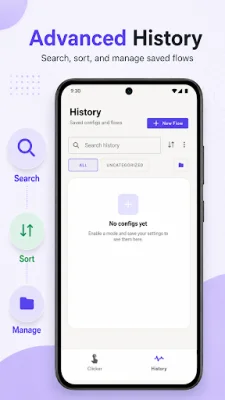
You can save your tap and swipe layouts as named configurations and reopen them later from the History section of the app. The app supports up to 25 saved configurations.
IMPORT & EXPORT
The Auto Clicker app also allows you to export saved configurations for backup or transfer, and import them again when needed.
HISTORY
The History section of the app makes it easier to find and manage saved automation setups with search, sorting, and simple navigation.
CONTROL SETTINGS
The app also offers various control settings that can be adjusted to fit your specific needs. These include click interval (minimum 100 ms), loop count (fixed or unlimited repetition), per point delay and duration (available in Multi Target mode), swipe duration, swipe delay, and loop delay (pause between full sequence).
HOW TO USE
To use the Auto Clicker app, simply open it and select a mode. Then, enable the accessibility service and position your target point or create a swipe path. Finally, press Play to start the automation. No root access is required and the app supports Android 7.0 and above.
PERMISSIONS
The Auto Clicker app requires certain permissions to function properly. These include the Accessibility Service, which is required to perform tap, long press, and swipe automation based on user settings. The app also requires the permission to display over other apps for the floating control panel, and the permission to show notifications when the service is active. It's important to note that the automation will only run when enabled by the user.
Rate the App














Popular Apps