
Duplila - Mirror Screen
4.0 by Roman Sisik (0 Reviews) October 10, 2024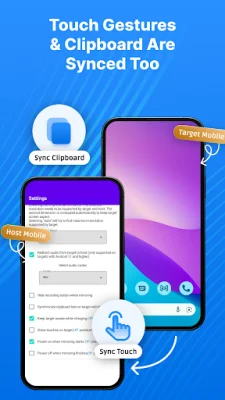
Latest Version
4.0
October 10, 2024
Roman Sisik
Tools
Android
0
Free
com.duplila.screenshare
Report a Problem
More About Duplila - Mirror Screen
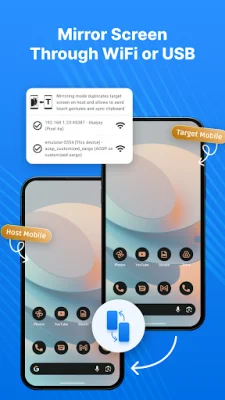
Setting up this application is a breeze, so don't let any initial difficulties discourage you. Detailed instructions on how to use it can be found, and it offers the option to connect through WiFi or USB OTG. This allows for remote screen mirroring or a direct connection through a cable. The resolution and quality of the stream are top-notch, as long as both the target and host devices support it. Additionally, the latency is kept low for a smooth streaming experience.
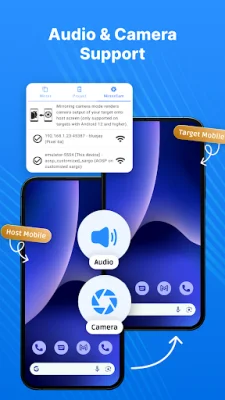
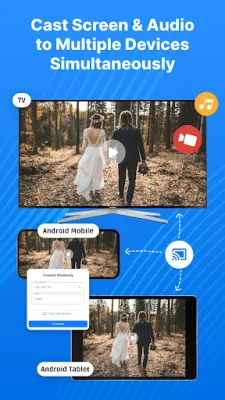
In projection mode, this app also allows for audio streaming from the host to the target device. This feature can be used to stream music or sound from YouTube videos from your phone to an Android TV. However, both devices need to support the opus format, and the target device must be running on Android Marshmallow or higher.
One of the great things about this app is that it can work with some older devices that may not support Miracast. This allows for a wider range of devices to be able to use this app for screen sharing. It even has the capability to work with WearOS watches, as long as the resolution is compatible.
In order for this app to function properly, you will need to enable developer options and establish an ADB connection. This may sound daunting, but the instructions provided on the website are detailed and include images to make the process easier.
To use this app, you will first need to enable developer options and USB debugging on your target device. This can be done by following the instructions provided on the website. It is important to note that on Huawei devices, you may need to turn on USB tethering before enabling USB debugging.
Once you have enabled developer options and USB debugging, you can connect the device with the app installed to the target device using a USB OTG cable. Make sure to allow the app to access the USB device and ensure that the target device authorizes USB debugging. With these simple steps, you can start using Duplila to easily share your screen with other devices.
Rate the App









Popular Apps