RemoteView for Android Agent
8.3.1.5 by RSUPPORT Co., Ltd. (0 Reviews) December 02, 2025

Latest Version
8.3.1.5
December 02, 2025
RSUPPORT Co., Ltd.
Tools
Android
0
Free
com.rsupport.mobile.agent
Report a Problem
More About RemoteView for Android Agent
This application is a remote viewing and control tool that allows users to connect to their Android devices from a PC or another Android/iOS device. It is available in two versions: Enterprise and Standard. The Enterprise version allows for connections from a PC to an Android device, as well as from a mobile device to an Android device. The Standard version only supports connections from a mobile device to an Android device.
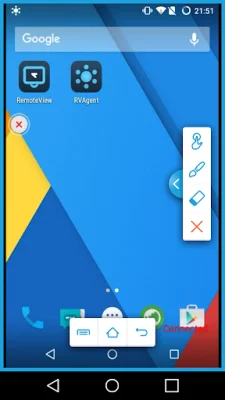
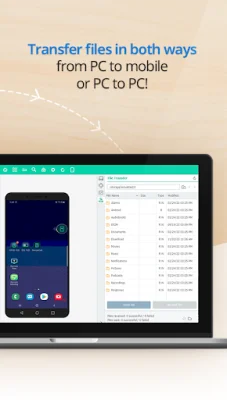
Some of the special features of this app include screen sharing and remote control, file transfer in both directions, and the ability to draw directly on the mobile screen for clear notations. The Enterprise version also allows users to view system information, current processes, and installed apps on the connected mobile device. Additionally, users can send a URL from their PC and record the entire session, including any drawings made.
One of the key selling points of this app is its fast and reliable connection, which is compatible with dynamic, private IP, DHCP, firewall, and proxy settings. It also boasts military-grade security measures such as 2-step verification, AES 256 bit encryption, and SSL communication. The app is available in English, Korean, Japanese, and Chinese.
Users can utilize this app in various ways, such as controlling tablets from a smartphone, sharing the same mobile screen for demos or support, and managing digital signage, kiosks, ticketing machines, or any other Android-based device.
To get started, users must first create an account on www.rview.com. This is a necessary step as the app requires users to log in with their account information in order to connect to their devices. Once the account is created, users can install the Agent app on their mobile device and enter their account information. They will then need to set up an Access account with a device name, ID, and password. From there, they can connect to their mobile device from another mobile device or a PC.
Connecting from a mobile device requires users to download and install the Viewer app from the Play Store. They can then log in with their rview.com account and select the device they want to connect to from the list. They will need to enter the Access account information to establish the connection.
To connect from a PC, users can simply go to rview.com on a compatible browser and log in with their account information. They can then select the device they want to connect to and enter the Access account information to establish the connection.
In summary, this app provides a convenient and secure way for users to remotely view and control their Android devices. With its various features and compatibility with different devices and settings, it offers a versatile solution for managing and accessing Android devices remotely.
Rate the App


Popular Apps