

Ftp Server Pro
1.32 by The Olive Tree (0 Reviews) September 06, 2024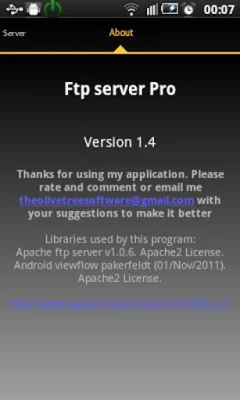
Latest Version
1.32
September 06, 2024
The Olive Tree
Tools
Android
0
$0.99
com.theolivetree.ftpserverpro
Report a Problem
More About Ftp Server Pro
If you are in need of an FTP client, I highly recommend using the FileZilla client. It is available for download at http://filezilla-project.org/ and is compatible with Windows. However, if you prefer, you can also use the file explorer on your Windows device.
The free version of this application does not support landscape screen mode.
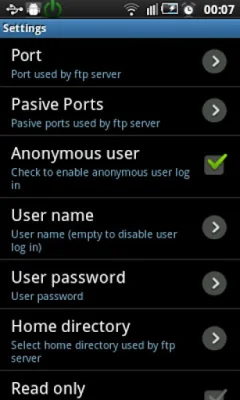
Some of the features of this application include the ability to use any network interface on your device, such as WIFI, Ethernet, Mobile network, or USB. There is also an option for an anonymous user, which can be disabled, as well as the option for one FTP user, whose name and password can be changed. The home directory can be set as the root directory and there is also a read-only mode available. The application supports both passive and active modes and has the ability to show hidden files. Additionally, there is an option to customize the home folder and to run the server as a foreground service. The application also has an energy save mode and supports multiple languages, including English, Spanish, Romanian, French, Italian, Hungarian, German, Chinese, Portuguese, Korean, Russian, and Catalan. There are also specific intents for starting and stopping the FTP server.
Some features of this application are still in development, such as the ability to run the server as a root user (only available on rooted devices) and TLS/SSL support for secure connections.
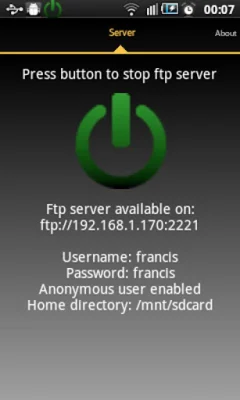
If you need to connect to the FTP server using a USB cable, there are a few steps you need to follow. First, on your phone, go to Settings->Applications->Development and enable "USB debugging." Then, connect your phone to your PC using a USB cable. Next, start the adb server on your PC by running the command "adb start-server." You can find the adb program in the android sdk, usually located at android-sdk\platform-tools\adb. After that, you will need to forward the necessary ports from your PC to your phone by running the command "adb forward tcp:2221 tcp:2221." This step will need to be repeated for all FTP server and passive ports configured on your phone. It is recommended to use a small range of passive ports to make this process easier. Once this is done, any connection on your PC to 127.0.0.1:2221 will be forwarded to your phone on port 2221. Finally, you can start the FTP server on your phone, open the settings, and select either "Loopback (127.0.0.1)" or "All" under "Network interfaces." Then, start the FTP server and connect your FTP client on your PC to ftp://127.0.0.1:2221 (the port may be different depending on your FTP server configuration). Please note that when using a USB connection, only passive mode is available and connections must be initiated from the PC.
This application requires certain permissions in order to function properly. These include INTERNET, ACCESS_NETWORK_STATE, and ACCESS_WIFI_STATE, which are needed to enable the server to communicate with FTP clients. Additionally, the WRITE_EXTERNAL_STORAGE permission is needed to allow the server to write received files from FTP clients onto the SD card. Finally, the WAKE_LOCK permission is used to keep the phone awake while the server is running, as connections to the FTP server may fail if the phone is not awake.
This application uses the Apache ftp server v1.0.6, which is licensed under the Apache2 License. It also uses the Android viewflow pakerfeldt library, which is licensed under the Apache2 License. Special thanks are given to Beatriz Vera, Surjit Panda, Alex Sovu, Balazs David Molnar, Damien Varvenne, Simone Balducci, Juanvi, Chengcheng Hu, Noelia, Noxa Tagakov, Joon Lim, Tomokazu Wakasugi, and Paulino Feitio for their contributions to this application. The creators of this application strive to be original and SEO-oriented in their development.
Rate the App














Popular Apps