TV Cast - Cast for Chromecast
1.4.2 by Generation z apps (0 Reviews) October 25, 2024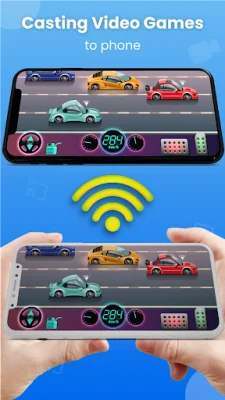
Latest Version
1.4.2
October 25, 2024
Generation z apps
Tools
Android
0
Free
com.castscreenmirroring.casttophone
Report a Problem
More About TV Cast - Cast for Chromecast
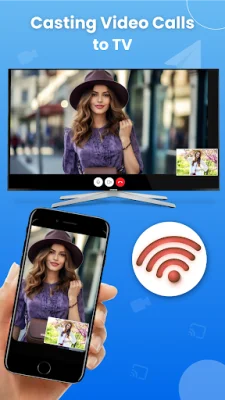
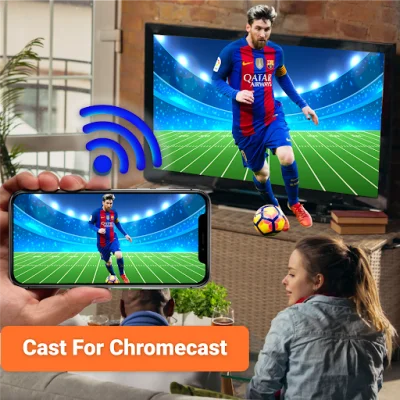
Cast to TV & Chromecast for Roku TV is an application that allows you to share your phone screen to various devices such as Roku, Fire TV, Xbox, Samsung, and LG TV. With this app, you can cast your web browser to your smart TV and watch your favorite TV shows and live streams on a bigger screen. It also offers screen mirroring, which allows you to mirror your phone screen to your smart TV using Roku.
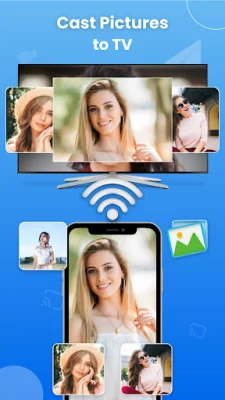
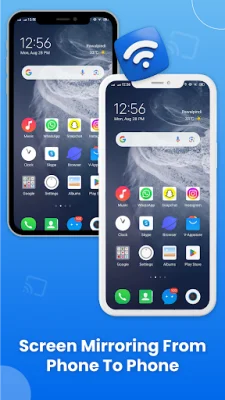
The key features of Cast to TV for Chromecast include the ability to cast your phone screen to another phone for screen sharing, cast videos and photos to Roku TV, and Chromecast your TV screen to a smart TV with Roku. It also serves as a smart cast app for screen mirroring and phone casting, supporting multiple media types such as videos, audios, pdfs, and e-books. Additionally, it offers a screen mirroring app for casting to TV, live streaming, and phone screening.
One of the main features of this app is the ability to cast to Roku for live streaming of sports and music with remote control access. You can also cast your web browser to your TV and watch your favorite TV shows on a live screencast. Cast to TV also allows you to cast to other devices such as Chromecast, Fire TV, Samsung, Xbox, Xbox One, and LG TV.
With Cast to Roku, you can screen mirror your TV screen to Roku and watch videos in HD quality. This feature is especially useful for enabling Roku and enjoying your favorite TV shows, live streams, and videos on a bigger screen. You can also cast your phone to TV using casting devices like Roku stick, Roku box, and Smart TV, including Samsung and LG TV.
The app also offers screen mirroring, which allows you to mirror your phone screen to a smart TV. You can Chromecast your phone screen and play games on a bigger screen in HD quality with web video caster. Additionally, you can use the cast app to stream web videos, online movies, and live streams.
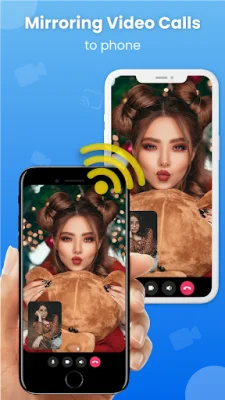
Cast to TV also has a feature that allows you to cast your phone to another phone. This all-in-one screen mirroring and screen casting app lets you access a remote camera from another phone using free screen share. You can connect your phone to TV and cast mobile games or any app on a bigger TV screen.
To start screen mirroring, you need to connect your devices, such as your Smart TV and smartphone, to the same WIFI network. Then, launch and connect the Miracast app to your Smart TV and tap on the cast button to get started. This will enable screen mirroring.
Cast to TV supports a wide range of devices, including Chromecast, Roku TV, Samsung Smart View, LG TV, Panasonic TV, Smart TV, Vizio, Sony TV, Toshiba, Philips, Hisense, JVC, RCA, Hitachi, TCL TV, Fire stick TV, and DNLA receivers.
Thank you for downloading TV Cast for Chromecast. If you have any suggestions or feedback about Cast for Chromecast TV Cast, please contact us at [email protected]. We value your input and strive to provide an original and SEO-oriented experience.
Rate the App

Popular Apps