

WebDAV Server Pro
1.17 by The Olive Tree (0 Reviews) September 24, 2024

Latest Version
1.17
September 24, 2024
The Olive Tree
Tools
Android
0
$0.99
com.theolivetree.webdavserverpro
Report a Problem
More About WebDAV Server Pro
This application is a WebDAV server that has been tested on Windows8 Explorer and can also work on Windows7. However, it is not compatible with WindowsXP. The WebDAV client bitkinex can be downloaded from http://www.bitkinex.com/. Special thanks to Beatriz Vera, Peter Ulrich, Gabor Fodor, Manuela Merino García, and Anna Rainieri for their contributions to this application.
The application has implemented Intents, specifically com.theolivetree.webdavserver.StartWebDavServerPro and com.theolivetree.webdavserver.StopWebDavServerPro. These Intents allow users to start and stop the WebDAV server. Additionally, there is a lock setting that can be adjusted to determine how the device should be kept awake while the server is running. There are three modes available: SCREEN_DIM_WAKE_LOCK, WIFI_MODE_FULL, and WIFI_MODE_FULL_HIGH_PERF. The recommended mode for energy saving is WIFI_MODE_FULL_HIGH_PERF, but users may experience problems and may need to select the default lock mode.
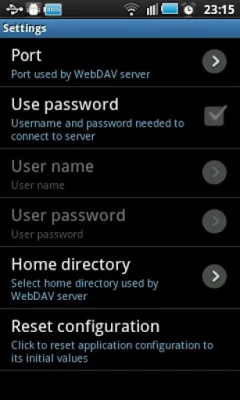
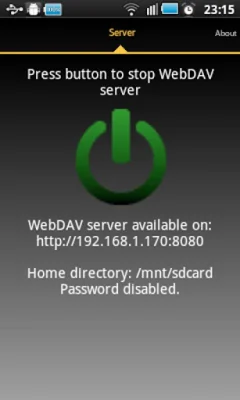
To connect with the WebDAV server using a USB cable, follow these steps: 1) On your phone, go to Settings->Applications->Development and enable "USB debugging." 2) Connect your phone to your PC using a USB cable. 3) Start the adb server on your PC by running the command "adb start-server." 4) Forward the needed ports from your PC to your phone by running the command "adb forward tcp:8080 tcp:8080." 5) In the WebDAV server settings on your phone, select "Loopback (127.0.0.1)" as the network interface. 6) Start the WebDAV server. 7) On your PC, connect your WebDAV client to http://127.0.0.1:8080 (port may vary depending on server configuration).
The application requires certain permissions to function properly. These include INTERNET, ACCESS_NETWORK_STATE, ACCESS_WIFI_STATE, WRITE_EXTERNAL_STORAGE, and WAKE_LOCK. The network permissions allow the server to communicate with WebDAV clients, while the WRITE_EXTERNAL_STORAGE permission enables the server to write received files from clients onto the device's SD card. The WAKE_LOCK permission keeps the device awake while the server is running, as it cannot be accessed if the device is asleep.
If users encounter problems with handling large files, it may be due to a limitation in the Windows WebDAV client. To increase the file size limit, users can try the following steps: 1) Enable BasicAuth via regedit to allow access to the server with a username and password. 2) Change the Windows limit for file size when using the integrated WebDAV client. 3) Restart Windows. These steps should allow for file sizes up to 4 gigabytes to be handled by the client.
Rate the App















Popular Apps