Notification Manager
v1.1 by AIO Toolbox INC (0 Reviews) August 28, 2024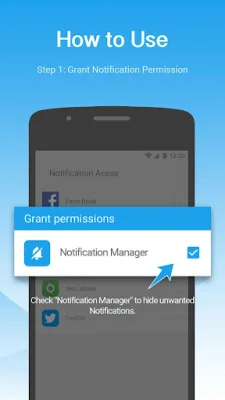
Latest Version
v1.1
August 28, 2024
AIO Toolbox INC
Tools
Android
0
Free
com.imoblife.quietnotification_plugin
Report a Problem
More About Notification Manager
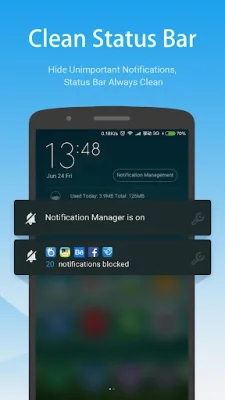
To use the Notification Manager application, you will first need to install its mother program, All-In-One Toolbox (Cleaner), which can be found on the Google Play Store. Once installed, you will also need to grant "Notification Access" to the Notification Manager. This can be done by going to the app's settings and enabling the Notification Manager feature. From there, you can select which apps you want to hide notifications from and the process is complete.
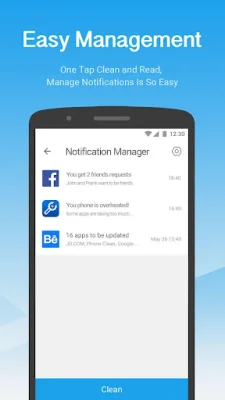
If you want to find any blocked messages, you can do so by accessing the Notification Manager. Simply click on the Notification Manager icon in the notification bar and you will be able to see all unread notifications. You can also delete any unwanted messages by swiping them to the right.
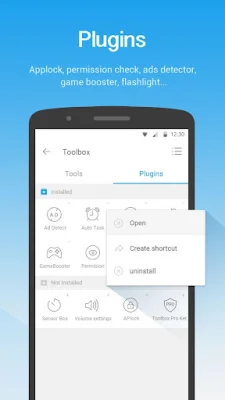
To make it easier to access the Notification Manager, you can create a shortcut for it. This can be done by going to All-In-One Toolbox, then Toolbox, then Plugins, and finally Notification Manager. From there, click on the three dots in the top right corner and select "Create shortcut". Alternatively, you can also access the feature quickly through the All-In-One Toolbox widget by long-pressing on a blank home screen and selecting the widget.
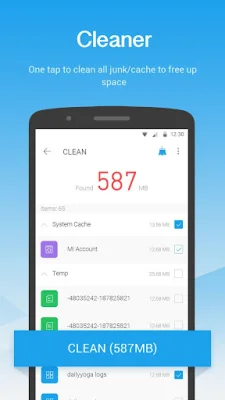
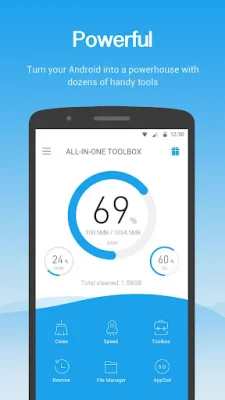
The All-In-One Toolbox application offers a variety of features, including junk file cleaning, task killing, app management, and more. It also has a beta test group on Google+ for users to join and provide feedback to help improve the app. If you have any questions, you can contact the support team via email at [email protected].
Some of the features included in All-In-One Toolbox are junk file cleaning, duplicate file cleaning, task killing, memory boosting, batch app installation and uninstallation, app backup and restore, system app management, startup app management, APK management, SD card file management, privacy protection, easy swipe, CPU cooling, smart charging, app advertisement detection, app locking, automatic cleaning and task boosting, game boosting, app permission checking, a compass, flashlight, QR and barcode scanning, quick system settings, sensor box, and quick volume settings.
Rate the App














Popular Apps